Elevation Finder on Map By Address
Elevation Finder Full ScreenDo You Want to Find Elevation On Map? Or Wondering About What’s My Current Elevation? Below is the answer:
This free online mapping tool will provide the elevation by address.
Get elevation on map by just one click. Simply click on the map and get the altitude of that point from mean sea level. Click or tap the map or enter the address, postal code, zip code or geographic coordinates in Latitude & Longitude in the text box. It is a very common question in our daily lives that what’s my current elevation? This webgis mapping tool will address this question. Click or tap on “My Location” then the map will zoom to My Current Location and will add a marker on map. Now tap or click on map to get the elevation.
This application is built by using open source technologies so it is free to use for a life time.
Finding your current elevation is very easy by using this elevation finder application which uses openstreet map. You can switch maps between satellite imagery and topographic maps as well. This application will help you to find your current elevation from mean sea level with accuracy within 90×90 meters as it is using elevation dataset of 90m resolution. This elevation finder tool use open-source technologies that are free to use. You can use this application absolutely free.
It provides the following functionalities to calculate the elation on map.
- Search Address on Map
- Search Postal Code or Zip Code on Map
- Search by Geographic Coordinates
- Use My Current Location
- Basemap Switcher
- Latitude / Longitude at Bottom for Mouse Current Location
- Elevation Finder Using Click on Map
- Elevation in Meters and Feet
Who Can Benefit from this Application
- Civil Engineers: This tool can be used to assess terrain elevation before planning different projects like roadways, bridges, or drainage systems.
- Surveyors: Quickly check elevation value on-site for mapping, land division, and construction planning.
- Urban Planners: Evaluate altitude differences between different city zones for various planning tasks zoning, infrastructure development, and flood management.
- Environmental Scientists: Sometimes instant elevation value is required to study and plan ecosystems, water flow, and climate modeling.
- Real Estate Developers: Find site elevation for drainage design, accessibility to property, and estimate potential value while selecting land for housing or commercial development.
- Hikers & Outdoor Enthusiasts: Get to know specific location’s altitude before or during hiking, climbing, or trekking activities.
- Telecommunications Engineers: Planning towers before installation and know the coverage.
- Disaster Management Professionals: efficient disaster management like to find potential flood areas by using the altitude values.
- Photographers & Videographers (Drone Operators): Plan shoots based on elevation for capturing aerial photos or videos, especially in landscapes and cityscapes.
- Agricultural Planners: Assess field elevation to design efficient irrigation systems and manage water flow.
Example: Use of Elevation Finder for Flood Risk Assessment.
Imagine you are a disaster management expert in New Orleans, Louisiana. You need to know flood risks in low-lying neighborhoods while making a disaster management plan. By identifying areas with low elevation as compared to sea level , you can make effective evacuation routes and strategically place emergency shelters on higher grounds with maximum effectiveness.
Elevation Map Application User Guide:
We will go through it step by step to use this elevation map application to answer your question: what’s my current elevation on the map using my current geographic location
Step 1: Locate Yourself on Map Using Elevation Finder Application:
There are two options to locate yourself on map to get the elevation of your desired location. Let’s talk about “My Current Location” first. At top of the application in menu bar there is a green button with “My Location” text. Press it and browser will ask to allow to read your current location. Allow the browser then the map will be zoomed to your current location.
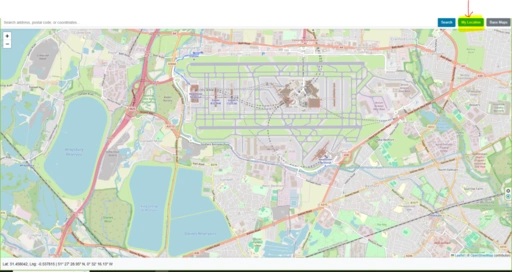
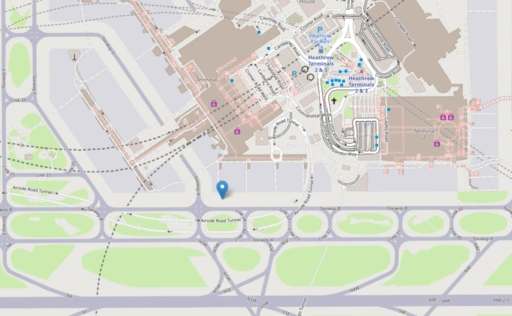
The location can also be searched in the form of postal address, zip code / Postal code, geographic coordinates latitude & Longitude. You can use the search bar on top of the application to enter the required information.

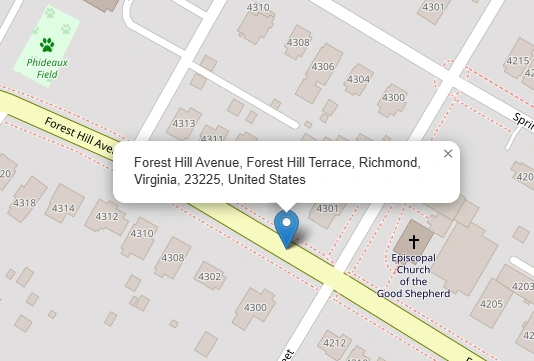
Step 2: Find Elevation on Map
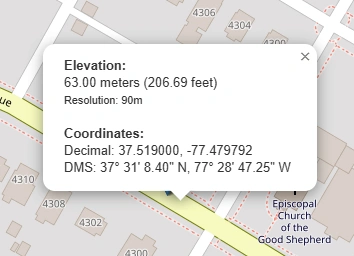
Now we are on the location where we can find the altitude on map. Place mouse pointer on map where elevation information is required and click on map. A popup with relevant information will be appeared as shown in the screenshot below.
Base Map Switcher
An additional functionality for users to enhance user experience, we introduce basemap switcher. With the help of basemap switcher user can easily change view from streetmap to satellite or topographic map.
Before the technology was evolved, only special workers with expensive tools could find the exact height of a place above sea level. Now, a person with internet can use a website to get that same information. These websites help people who walk outside, people who build things, and people who just want to know.
How elevation websites work
Specialized web applications do not measure anything by themselves. They usually connect to big data repositories called Digital Elevation Models. When you click anywhere on a web map, the app code transform that click using code to find the spot's location (latitude and longitude). Then a request is sent to the server to send back the elevation for that particular lat long.
Where the numbers come from
Different numbers have different levels of detail.
- SRTM data came from space shuttles. It shows height in squares that are 30 meters wide. That is good for large areas.
- LiDAR data comes from airplanes. It shows small details down to one centimeter. That is very precise.
- Bathymetry data shows depth under water instead of height above water.
A problem to watch for
Each tool has a resolution. Resolution means the size of the smallest area the tool sees as one flat piece. If a tool uses 30 meter resolution, it cannot tell if one small part of that square is higher than another part. If you click near a sharp drop, the tool may give you an average number instead of the true top or true bottom.
What comes next
Because of new web technology, elevation tools now show land in three dimensions. A person can turn the view and tilt the view. The person can see the shape of the land. This change makes geographic information easier to understand. Numbers become an image you can move around.
People use these tools to plan a walk in the mountains or to check the tilt of a piece of land. What used to require special workers is now available to everyone.
Ans: When you click on a map to get the elevation using this app on a specific point, the primary data source used is Digital Elevation Model (DEM).
Real-world examples of DEMs used:
So, in short: DEM is the source. The map just reads from it when you click. No magic — just smart grids and averaging!
Ans: When you click, the map knows your click’s screen coordinates (X, Y in pixels).
It then converts those into geographic coordinates (latitude and longitude) based on the map’s current zoom level and projection.
Step 2: Find which DEM cell contains that point
The map now has a lat/lon, like
The DEM is a grid where each cell has known lat/lon boundaries.
The software figures out: Which grid cell does this lat/lon fall into?
Example:
If the DEM cell covers from
Step 3: Read the cell’s elevation (or interpolate)
Now it gets clever:
Imagine the four surrounding DEM cells (northwest, northeast, southwest, southeast). Each has a known elevation. Your click point is somewhere between them.
The software:
• First averages the two west cells vertically → a “west estimate”
• Then averages the two east cells vertically → an “east estimate”
• Then averages those two results horizontally (using distance weighting) → final elevation
It’s basically a smooth weighted average of the four nearest known elevations.
Step 4: Return the result
After the math, you see a number on screen:
All in milliseconds—faster than you can blink.
Ans: Accuracy is primarily dictated by spatial resolution. For example:
In other words: the finer the DEM resolution, the more accurate the elevation retrieval for micro-terrain features. Global DEMs like SRTM (30m) are suitable for regional analysis, while high-res LiDAR captures subtle changes.
Additional nuance: vertical accuracy also matters (RMSE), but for click-based queries, horizontal resolution is the main factor.
Ans: This depends on whether the tool uses a DEM or a DSM (Digital Surface Model).
Most generic web apps default to DEM (bare earth) for terrain profiles, but specialized mapping tools may offer a DSM layer. Always check the metadata: if the source mentions “first return” or “canopy model”, it’s a DSM. If it says “bare earth” or “DTM”, you’re getting ground elevation.
Practical note: In urban environments, using a DSM for click elevation gives you building heights, while a DEM gives you street level.
Open Source Resources
Map Tools Brief Description
-
Radius Map Online – Measure Radius on Map :
Radius Map Tool is a very simple easy to use web map tool. With the help of this tool, you can draw a circle of your desired radius on map at given location. You can easily move and edit the circle on map by changing its color, radius and location. You can download the map as jpg.
-
Calculate Area on Map Online- Land Area Calculator Map:
Area Calculator on map is a free area map tool. This area calculator tool using web map allows you to find out the area in multiple units that is enclosed inside a closed polyline overlaid on a map. You can also download the data in geojson format.
-
Map Distance Finder - Driving & Straight Distance Between 2 Locations:
Distance Calculator on map is a very intuitive& simple free GIS web tool to calculate distance between two locations. It provides street or driving distance as well as straight distance. You can also download route data in the form of geoJSON to use on any GIS software.
-
Elevation / Altitude Finder By Address or Current Location:
Get your current elevation on map using this free online web map application. Just locate yourself on map and get the altitude of specific point. You will get elevation using 90 meter resolution dataset. It means accuracy of the elevation is approximation under 90×90 meters.
-
Zip Code Lookup by Address - Find a Post Code:
To find a zip code (or postal code) for your current location or a specific address, you can use this free tool to mark your position on map and find postcode on single click. Worldwide postal code finder for any address on map makes your life easier.
-
EV Charger Finder - Find Electric Car Charging Stations on Map:
Nearby EV charging station finder on map within United States and get google maps driving directions. This tool will allow you to search street address to find nearest charging port of required location. You can also enter the coordinates or you can use your current geographic location.
-
What is My Current Time Zone - Time Zone Map:
It provides your current GMT time zone, current local time, address date and coordinates worldwide. You can search your address or can use your GPS location. Retrieved information about the time zone can easily be shared on whatsapp.
-
GPX Data Viewer Online - View Hiking, Cycling, Running Data on Map:
Simple user friendly web mapping application to find time zone on map by simply searching the address, postal code, geographic coordinates. You can also search for current time zone by just click my location on map. Click on map and you will be provided detailed information about your current time zone.
-
Shapefile Viewer Online - View GIS Data in .shp Format:
Want to view your GIS data in Esri Shapefile .shp format on map online? Use our shp viewer free application tool to display your shp file format data online. Map can also be exported using this shapefile viewer online application.
-
GPX to GeoJSON Converter
Do you need to convert your GPS data stored in GPX format to well known GeoJSON data. This free web tool will do this job for you. Just upload data, convert and download the required format.
-
KML Online Viewer - Visualize .kml .kmz Data on Map Online
Web Application to view KML, KMZ files on street map and satellite image. View and explore KML and KMZ files online. Fast, free KML viewer shows your placemarks, paths.
-
Coordinates Plotter - Plot Latitude and Longitude on Map Bulk CSV
This online map application provides you with an interactive map made with your own geographic data in CSV file format.
-
Geotag Photos for Free - Batch Editing
Batch-upload up to 10 photos at once, edit EXIF metadata and geotag each image individually in just a few clicks, then export the updated files as high-quality JPEGs.
-
True Size of Countries
The world as it actually is, not just how it’s drawn. How big is your country? Drag it to find out. True Scale. Real Geography. No Distortions.